Photos, music and contacts each get onto an iPhone a different way, and all three are handled by iCloud or the Finder rather than by any software you need to go and buy.
Photos
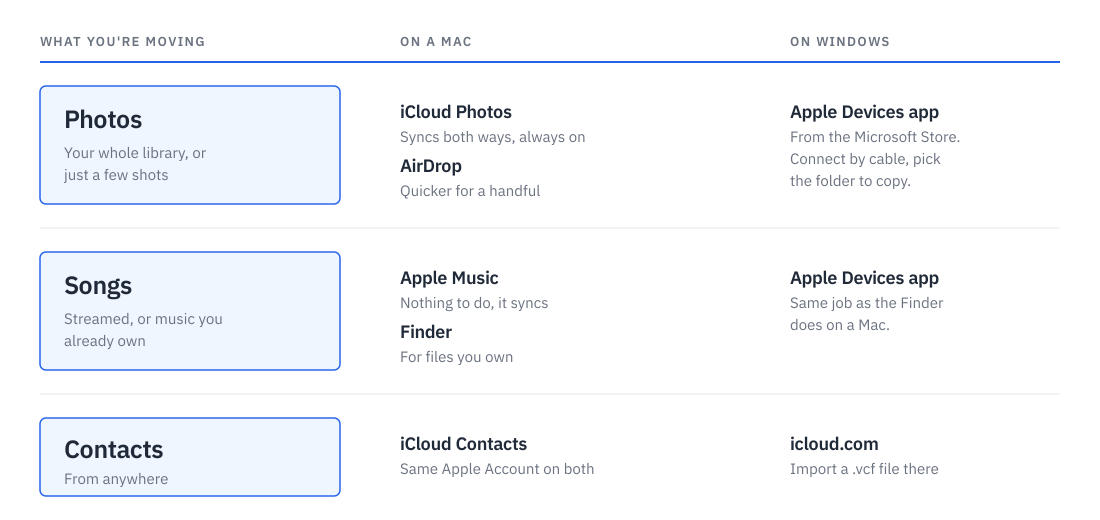
Turn on iCloud Photos and your whole library appears on every device signed in to the same Apple Account, in both directions. On a Mac it is in the Photos app under Settings > iCloud. On the iPhone, open Settings, tap your name at the top, then iCloud > Photos. The free tier is 5 GB, which a photo library fills quickly; 50 GB is 99 cents a month.

For a handful of photos rather than a synced library, AirDrop from the Mac is quicker. Select them, click the share icon, pick the iPhone, and accept on the phone.
On Windows, install the Apple Devices app from the Microsoft Store. Connect the iPhone with a cable, open the Photos section, and choose the folder you want copied across.
Songs
With an Apple Music subscription there is nothing to do. Add an album on the Mac and it is on the phone.
Music you own rather than stream has to be synced across. Add the files to the Music app on the Mac, plug the iPhone in, and it shows up in the Finder sidebar. Click it, open the Music tab, tick the playlists or albums you want, and click Sync. The Apple Devices app does the same job on Windows.
Contacts
Contacts sync through iCloud. Turn on Contacts in iCloud settings on both the Mac and the iPhone, using the same Apple Account on each, and the two lists merge into one.
Contacts exported from somewhere else, like Google or Outlook, come as a .vcf file. Sign in at icloud.com, open Contacts, and import the file there. It reaches the phone within a minute or two.
Going the other way
Moving photos and videos off the iPhone works differently, and there are five ways to do it depending on where they are going. I covered those in how to send photos and videos from your iPhone.
Leave a comment