Question: I have a bunch of music in iTunes on my old computer. How do I transfer my iTunes library to my new computer?
Question: I have a bunch of music in iTunes on my old computer. How do I transfer my iTunes library to my new computer?
Answer: There are two ways to do this: 1) by manually copying your iTunes music files to an external hard drive and then manually copy them to your new computer, and 2) using a program like iPod 2 iTunes or MediaPilot that let you copy music from your iPod directly to another computer.
I’ll cover the manual route first, which is a little harder and requires that you have an external hard drive, and then I’ll show you the easy way using just your existing iPod and an inexpensive copy of iPod 2 iTunes.
Manually copy your iTunes library to another computer using a external hard drive
Plug in your external hard drive to your computer. Open Windows Explorer and go to your iTunes music folder. On Vista it’s C:\Users\your.username\Documents\My Music\iTunes\iTunes Music. On Windows XP it’s under Documents and Settings.
Copy the iTunes Music folder to your external hard drive, and then plug the hard drive into the other computer.
Make sure iTunes is installed on the other computer, and just copy the contents of the iTunes Music folder from your external hard drive to the new computer (in the same location as the old computer). iTunes will recognize the files the next time you run it, and you’ll be good to go.
Automatically copy your iTunes library to another computer with third-party software
A much easier option if you have all the music on your iPod is to use a third-party program that will copy music from your iPod to your computer (basically using your iPod as an external hard drive).
There are a couple of programs that you can use to upload music from your iPod to any computer running iTunes.
MediaPilot software allows you to backup, edit and transfer music & video between your iPod and PC, and also works between your cell phone and PC.
You can also use it to backup your ipod in case you damage it or lose it. Let’s hope that never happens, but if it does then you’d be able to recover your music from the backup that you made.
Here’s how it works:
- Plug your ipod into your computer and make sure it’s set to manually sync music files (iTunes will run when you plug in your ipod, and you’ll see your ipod show up on the left window in iTunes. Click your ipod in itunes and select the option to “Manually update music files”)
- Run MediaPilot which will show you an ipod explorer screen, showing the music, playlists, and videos on your ipod.
- Highlight the files you want to transfer to your computer and click the Transfer button to copy them over to your computer in the iTunes folder.
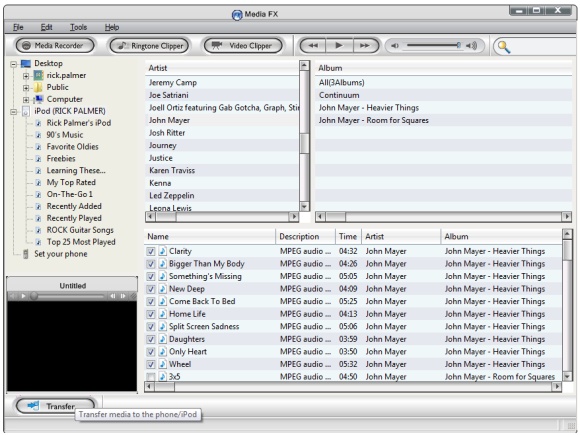
Being able to use this program to transfer music files to your cell phone is a nice plus, and it also lets you create ringtones from your existing songs in iTunes.
Here’s a coupon code for MediaPilot. Enter promo code M0707CJ at checkout to get 20% off MediaPilot, which brings the price tag down to about $15.
Another program that will let you copy directly from your iPod to your computer is iPod 2 iTunes.
Here’s how it works:
Go into iTunes on your computer and make sure you’ve copied all of your music to your iPod. Then plug your iPod into the other computer and turn off iTunes when it starts.
Install and run iPod 2 iTunes, which will show you a list of all the music on your iPod. Just highlight all of the music files that you’d like to copy to the new computer, and click the Transfer button.
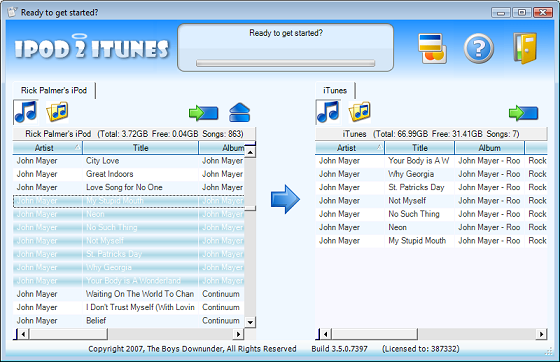
iPod 2 iTunes will automatically copy your iTunes library to your other computer.

ipod transfer to another computer
what if your ipod is macintosh formatted and your mac was stolen or crashed and you want to transfer your items in your ipod to a windows pc.will it work too using the ipod2itunes
Yes, that’ll work just fine
Yes, that’ll work just fine and was in fact the same situation I was in where I switched from a Mac to a PC laptop and was able to transfer everything over just fine.
I have used my external to
I have used my external to hold my music for over a year, but now i have a new computer and wish to put the music on there. I thought this would be a very simple process but when I try to transfer to my new computer it says, “Access Denied.” I cannot figure out why? Any solution?
You might have access to the
You might have access to the files which are not purchased from iTunes store. You have to authorize your new computer to play iTunes store purchases and to do so, navigate through the store menu on iTunes menu bar and select authorize computer. You can authorize up to five computers I believe. See what happens!! 🙂
Authorize computers
Hi, thanks for the tip. I had same problem and this resolved it but … it doesn’t make sense. I buy music and pay for it but I can only authorize 5 pc’s? I have a new computer every year and keep my Itunes library on an external file. So a few new computers and I can’t synch anymore with the Ipod? How do I handle this then?
Idk how old this post is but
Idk how old this post is but I figured someone looking for answers would read this…I contacted itunes regarding the transfer of my ringtones from my old computer to my new one and although they werent very helpful I did figure it out. You have to back up your purchased items onto cds, and once they are done you put the cd in the new computer and it will prompt you to use the back up cd onto the new computer. I got my ringtones, songs, apps and everything onto the new one. Hope this helps someone.
ugh.
Okay, i have my itunes library on my old laptop, and i just recently got a mac for graduation. I have most of my music on my ipod nano, but not all of my music will fit. when i try to transfer the music, it tells me i cant. It says i have to replace the library on my ipod with the library on my mac (which is no music). Ugh. this is stressing me out big time. can you help?
I don’t know of any programs
I don’t know of any programs that do this automatically for the Mac, but Apple does have some good instructions for manually copying them over:
http://support.apple.com/kb/HT1329
Basically you configure iTunes to “Manually manage music and videos” which turns off the auto-syncing behavior and gives you full control. Then you have to configure your iPod as a hard drive and manually copy music from your iPod to your desktop, and then import them into iTunes.
The steps are all laid out in the article.
iTunes Transfer
Dudes….I think the manual way is OK as long as you authorize the new PC to play your purchases from iTunes store. You can authorize and de-authorize a computer to play iTunes store purchases. As long as you do that, i guess you are off with a fantastic start.
Moving Itunes library to new computer
I just followed the instructions above for manual transfer of Itunes music library to external harddrive, then to new computer. The instructions says that when ITunes is opened that it would recognize it right away. Didn’t work for me. The music doesn’t show up in Itunes. Any suggestions?
Darlene,
Try using the File
Darlene,
Try using the File — Import menu in iTunes and pointing it to the folder where you copied the music from your external hard drive onto your new computer.
Another way is to use the File — Add Folder to Library menu option.
copy movies and tv shows
How do I copy the movies and tv shows from itunes on one computer to another where I do not have to use a password to view the shows or movies?
Put photos from ipod to computer?
I downloaded a bunch of photos onto my ipod. My computer crashed and lost all the pics I had saved on the computer. Can I now put the pictures on the ipod back on to the same computer? Or even a new computer (if I get one)?
Thanks!
confused
i have an old itunes on an older computer but i want to move it to my new laptop! I found a site that said to deauthorize, copy, export library, then import library, and then reauthorize the music to the new computer! is that right? would that work? because i don’t have internet on the new laptop or the old computer!Also i don’t have an iTunes downloaded to the laptop either!
whatif….
ok, my computer is totally busted, and won’t work, so is there some way i can get itunes on another computer, and will it let me re-download all the music i purchased on that computer?
My computer is running out
My computer is running out of hard drive space and i just bought a new 1TB external hard drive so i could transfer all my music and pictures to the external hard drive. How can i do this and will my itunes still work in my computer even though all my music is in the external hard drive now?
stolen mac
what if your mac was stolen along with your ipod, is there any way of getting your purchased items back ?
DJ iTunes & XP
Rick- thanks for being out there. I am looking for a recommendation on easy to use DJ software for Windows that accesses the iTunes library directly including purchased songs.
It does not need to be free. This is for personal use not professional DJ use.
I will be grateful for any direction. Thanks so much.
Rich
Willow Grove, PA
help!!
PLEASE help, my ipod was stolen and the computer the itunes i purchsed crashed..are telling me if I didn’t back up ALL the music I bought, its gone? I didnt by the way…my user name and password is till bringing me into i-tunes…but nothing is there….any solution at all?? Thanks so much!
transferring itunes music to wd passport external hard drive
I have 2 computers, an older mac ibook G4 and a newer macbook.
I have a ton of music on my ibook and want to transfer it to a wd passport and then to my new computer without losing some new music I have on the itunes of my new computer.
I want to sync itunes on my old computer with what’s on the external drive. I deleted a lot from itunes and want all that’s left to be on the hard drive. How can I sync those? When I try dragging the list to the hard drive icon, that just doesn’t work and I haven’t figured out another way?
I need very specific instructions about how to transfer the music to the hard drive.
Thank you!!!!!
i just used an external hard
i just used an external hard drive and transferred my itunes from an old computer to my new one. it worked perfectly. then i used the itunes store to download some new songs. only i just discovered that none of the new purchases synced to my ipod. when i plug the ipod in, what do i need to do to get it to sync up with the new computer?
I downloaded itunes 10 on my
I downloaded itunes 10 on my new computer. Then bit by bit transfered my music from my old computer (itunes 9) using a flash drive. the songs all show up on my new computer but when i try to play them it says “could not be used because the original file could not be found”. What went wrong?
This is a common problem.
This is a common problem. Before you start to import your music, make sure you go under the following menu on your itunes:
Edit
Preferences
Go to the Advanced tab
Put a check mark in the box that says “copy files to ITunes media folder when adding to library”
This is to make sure that when you unplug your external hard drive/usb, you can still access the music. Hope this helps!!!
Hey, the manual routine did
Hey, the manual routine did not work for me. I ended up with an incomplete “swiss cheese-like” library on my new Win7 laptop. What’s going on? A little assistance would be appreciated.
Transfer i tunes
I want to transfer my I tunes music to my new 11 mac air.
I understand how to do it with an external HD.
However i dont want to tfr all my Movies.
If i drag from I tune open window i lose playlists.
So how can i tfr music only and keep folders ??
Also once its on this 2nd laptop can i get them to auto sync each othher at home under wifi???
If i change playslists / purchase more music??
Regards Scott
Itunes
I transferred the music to my new laptop, but the data of plays, and top 25 did not transfer…did I do something wrong?
I copied my music manually,
I copied my music manually, but the # of plays, 25 most played, playlists did not move over to my new laptop…what did I do wrong?
hey will these also work for
hey will these also work for tv shows and videos? I have like three seasons of TV shows and a few movies on my old iTunes that I don’t want to loose!