How to copy photos and videos from your Blackberry to your computer, or from your computer to your Blackberry.
Question: I have some pictures I took with my Blackberry Curve that I’d like to copy over to my computer. How do I do this? Answer: Blackberry phones give you several choices for copying photos to your computer, or for copying them from your computer to your Blackberry. These instructions also work for copying music files and videos.
1. Transfer via email.
This is the easiest way, and doesn’t cost any money because data transfer is included in the Blackberry service. First open the picture open on your Blackberry by tapping Media -> Pictures -> My Pictures — and then finding your picture. Then press the menu button and select “Send As Email” (you have to scroll down a ways on the menu to find this option).

The email will show up on your computer with a file attachment containing your picture in jpg format, which is compatible with any photo imaging program like MS Paint on Windows, or Preview on a Mac. The only drawback with the email approach is that you can only send ONE picture at a time, which gets a little tedious if you have several pictures you’d like to copy to your computer. In that case I recommend the USB data cable approach described in option #3 below.
2. Transfer using bluetooth.
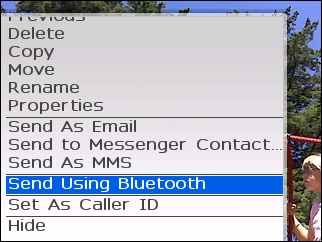
You can also transfer photos using Bluetooth, as long as your computer is within 30 feet of your phone. Open the Media application on your Blackberry to view your pictures, and open the picture that you want to transfer. Press the menu button and select “Send Using Bluetooth” (you’ll have to scroll down the menu towards the bottom to see this option).
You have to have Bluetooth enabled on your BB, otherwise you’ll see a warning message:
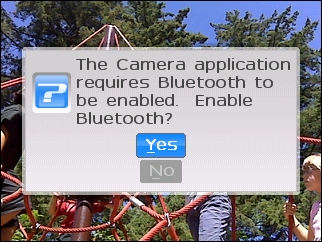
If you get this message, then go back to the main Blackberry screen and select the “Set Up Bluetooth” application. Make sure your computer has a Bluetooth adapter and has Bluetooth turned on, and your Blackberry will try to discover it.
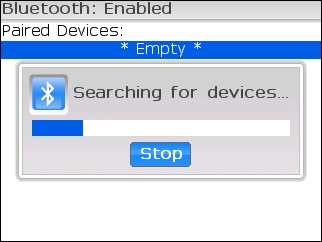
If you need help pairing your Bluetooth-enabled Blackberry with your computer, check out this article that includes step-by-step instructions for turning on Bluetooth on your computer and pairing it with a Blackberry Curve 8310: https://www.rickysays.com/pair-bluetooth-device-with-computer Once your computer and Blackberry have paired together (connected), then you’ll be able to go back to the Media screen, select your picture and choose the “Send Using Bluetooth” menu. On your computer, you may need to right-click on the Bluetooth icon in the taskbar and select “Receive File”, and then choose where you’d like to save the incoming file. Keep in mind that with Bluetooth you’ll only be able to transfer one file at a time.
3. Transfer using a USB data cable.
With a USB data cable you can copy ALL your pictures to your computer in one shot, instead of sending them one at a time like with the email and bluetooth options described above. This option is a lot faster for transferring multiple pictures from a vacation trip or night out with friends.
You’ll need the Blackberry Desktop Manager software that came with your phone to be installed (which can also be downloaded here) and a USB data cable. Don’t have a usb data cable or didn’t get one with your phone? You can get one on Amazon for a few bucks. Once you have the software installed, connect your Blackberry with the usb cable and plug the other end into an open usb port on your computer. Open the Blackberry Desktop Manager software, choose the Media Manager option, and you’ll see a Windows Explorer-like interface that will let you select the files you want to transfer.
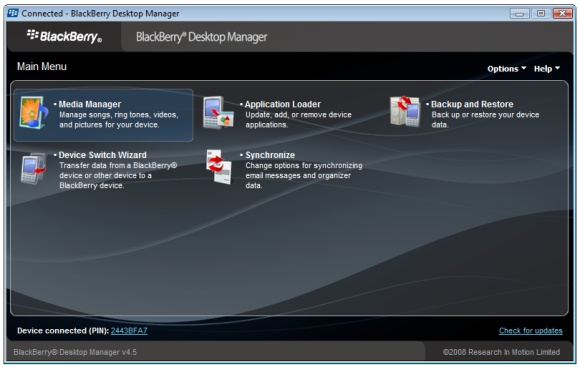
You’ll be able to copy multiple music files, videos, pictures, contacts, notes, etc from your Blackberry to your computer, or from your computer to your Blackberry.
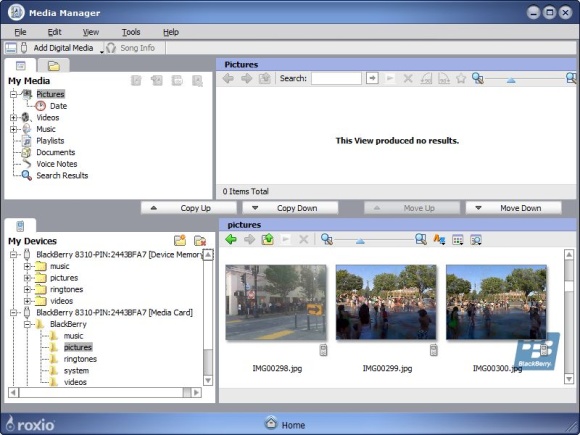
Just select the pictures that you want to copy from the bottom view under My Devices (your Blackberry, or the memory card on your Blackberry) and drag them up to the Pictures folder in the top region of the screen, under My Media. You can also select the Folder tab and copy them into any folder on your hard drive.
I prefer the Send As Email option if I just have a single file to send over, but if I have several photos to transfer then the USB data cable approach is much more efficient because it lets you transfer multiple pictures in one shot.
blackberry 9700
Hi,have tried all the above. When i try to view my blackberry pics on Media Manager i cannot see them at all…any clues
I tried transferring the
I tried transferring the files using desktop manager. File transfer was completed successfully but when i opened the file it is saying the corrupt file and the file does not open. I have tried many times but no same thing repeats… Any help will be appreciated!why go on a honeymoon cruise
transfered pictures from blackberry to computer
Hello I transferred over 50 pictures from my blackberry to my computer. It said transferring on my phone to my pc but my pc never got the pictures. now they are not on my phone or the blackberry. any way to recover the pictures?
Transfer Pix on Blackberry
Awesome article! Step-by-step instructions were perfect, and the screen shots illustrated it so as to make it error free! Thank you so much!
For transfering the pic to
For transfering the pic to the PC or from the PC, Mass storage can also be used. In seeting their is an option that can be used for this. Make prompt when connect to “YES” So that every time you connect hndheld to PC it will ask rather to connect as Mass Storage or not. Clicking yes you can connect as pen drive and do the transfer.
great instructions my kids
great instructions my kids think I’am a computer dummy but i was able to download my pictures without asking them for help thanks so much! 🙂
how to transfer pictures to my email from my blackberry to my em
wondering how to send pictures from my blackberry to my email with the USB cord? can you please help me?
Once in the media manager, I
Once in the media manager, I had to go to Tools, then Options, then Blackberry tab and then choose Device Memory instead of Media Card. Everything was perfect after this!
didnt work
Rubbish i will not use your advice again.
Very helpful. Thank you for
Very helpful. Thank you for the advice.
Blackberry photo and video import
Thanks Ricky. This info helped me a lot!
transfering media folders
how do u transfer media folders to your computer if your blackberry descktop does not have the media manager icon ??
Hello ,
My Pictures
Hello ,
My Pictures disappeared in Blackberry phone and it showing the folder empty but when i connect it by USB in PC i can see the pictures only in PC…. How i can fix this problem .. i tried reboot the phone and remove the battery ..but no pictures in my BB ?
Transferring photos from Blackberry to pc/MAC
Worked exactly as you said it would and the Blackberry site even gave me the option to use my MAC! Thanks for everything. Couldn’t have done it without your help!!
I wish to transfer music,
I wish to transfer music, photos and videos from my Blackberry to a hard drive storage device. Any idea how to do this?
I want to download my picture
I want to download my picture on the computer so I can put it on my bus pass