Here are a couple easy but powerful ways to transfer photos from your Motorola Razr phone to your PC (or vice versa).
Question: “It seems like the only way I can get pictures from my phone to my computer is to email them, which costs about 75 cents a picture depending on the picture size (at least with my Cingular wireless service plan). Is there another way to transfer them?”
Answer: Yes, you can transfer photos from your Razr phone to your PC (or vice versa) without paying any wireless provider fees, using a USB data cable or a bluetooth connector.
Transfer Pictures To Your PC with a USB Data Cable
If you have a USB data cable or a bluetooth connector (discussed below), then you can transfer pictures, video, and ringtones from your phone to your computer. You’ll need software to recognize your cell phone and handle the transfer with a USB data cable.
There are several affordable programs that will let you transfer photos, videos, and ring tones from your cell phone to your PC. They also let you copy them from your PC to your cell phone.
Motorola PhoneTools 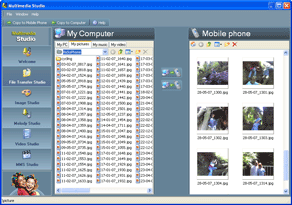 Motorola’s PhoneTools software is built specifically for Motorola phones like the RAZR or the new KRAZR.
PhoneTools allows you to transfer photos and videos directly from your Razr phone to your PC (or from a PC to your Razr phone). The PhoneTools’ Multimedia Studio and File Transfer Studio let you see all your photos, audio and video clips in the same window. You’ll see your computer on the left and your phone on the right.
Copying photos from your RAZR phone to your PC is as easy as highlighting them in the right-side window (representing your cell phone) and dragging them over to your file system on the left-side window. That’s it – very easy to do. 
You can also go the other way, and transfer existing pictures from your PC to your phone. The usb cable it comes with charges your phone while it’s plugged in, and there’s even a ring tone mixer that makes it easy to personalize your phone with custom ring tones.
Don’t get the PhoneTools software directly from Motorola though (they charge $49.99, which is way too much IMHO).
You can get the Motorola PhoneTools software from Amazon for about half the retail price. That’s a much more reasonable price for being able to easily transfer photos from your RAZR phone to your PC, and it’s a program you’ll use all the time.
Have a cell phone other than the Motorola RAZR?
Windows XP or Windows Vista don’t come with software to recognize your phone and handle the file transfer, so you’ll need a copy of DataPilot, which works with all major phone types.
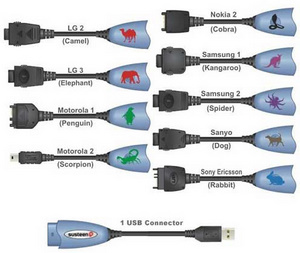
Fire up DataPilot, and plug one end of the usb data cable into your phone and the other end into the usb port on your computer. DataPilot will display a list of the existing photos, ring tones, and videos on your cell phone. Select the pictures on your cell phone that you want to move, and click the transfer button to copy them over to your PC.
You can also copy the other way, and use DataPilot to transfer photos or ring tones from your computer to your cell phone.
Transfer Pictures To Your PC Using BlueTooth
If you’d rather stay wireless, then a BlueTooth adapter is your ticket.


Bluetooth has a 30-foot range, so you don’t even need to have the phone right by you to be able to transfer files to it. In fact, you can keep your phone in your briefcase or backpack and still have no problems connecting to your laptop with Bluetooth.
Assuming you have purchased a Bluetooth adapter like the one shown above, then you’ll need to pair your phone with your computer so they can speak to each other over the Bluetooth protocol.
I’ve provided detailed instructions for pairing a bluetooth device here. The menu options specific to a RAZR phone are as follows:
Settings –> Connection –> BlueTooth Link –> Setup –> Find Me
You only need to pair your cell phone to your computer once. After that, your phone will be automatically recognized when you plug in the bluetooth adapter and have your phone within range.
Once your computer and phone recognize each other, you can select photos from your phone and transfer them to your PC. To send a file from your computer to your phone, just right click the file, choose the “Send by Bluetooth to” option, and then select your phone as the recipient.
how to transfer pics from cell to pc
Thanks so much for your information. Have just purchased a datapilot kit and am eager to receive it. Thanks.
Transferring Files From Dead Razr to PC
Hello:
I just found your site. My Razr V3 from ATT finally died (the pin on the side of the hinge fell out and loosened the cables inside). Would I be able to transfer photos/videos using Phone Tools, as you described above, if the phone is not able to be turned on?
Thanks! I have many precious files of loved ones I’m trying to save on this phone.
Hello
how do I get my pictures off my motorola RAZR that is not turned on (Active with t mobile) trasferd to my computer?
I have one of those LG
I have one of those LG Verizon slide phones, the kind with the full keyboard (dont know model or make), and I can’t seem to find the ‘connection’ thing in my settings, and when I try to send pictures, it doesnt say Bluetoothe, just pict. message or online album or e-mail.
hello rick….can u pls tell
hello rick….can u pls tell me how can i save images from net to my nokia c5-00 directly
Photo transfer with Tracfone
Ricky, I have tried multiple web sites and loaded or down loaded a number of drivers, have installed bluetooth and a dongle and have tried using a data cable, but all it is capable of is charging my phone.
I have been able to have computer and phone recognize each other, but unable to transmit files (photos). Will Data Pilot and the data cables that you have displayed on the website solve my dilema?? Are these data cables different than the standard one I have. I noticed some are marked for LG, which is what my phone is. Explain the difference of Camel and Elephant
My phone is an LG 290c with 1.3 mpcamera.
I hope you can solve my problem.
Richard
This was priceless advice…
This was priceless advice… Thank you!
The phone whose photos I
The phone whose photos I want to transfer to my computer is no longer active. Will the above solutions work on a phone with no phone service? I did not realize I could not transfer my photos to a new phone just like my address book until too late.
The article appears to be very helpful and easy to understand.
Thank you.
I have a razor phone model
I have a razor phone model V3m H/W O, can you please tell me what software I need for this phone. I want to put the pictures on the phone on my laptop. I just got my first one it is a Gatewayne56r48u with intel b960 processor. My wife told me the first problem is that its a Gateway, I know nothing about computers just wanted one to put some pictures from my razor on and have excel and word. The salesman said it had all of that and yes with a usb cable the picture transfer would be a snap. Maybe I am snapping wrong.
Thanks
DBC
Or you can simply drag from
Or you can simply drag from Razr phone on computer and drop into picture library (Windows 7).