How to create ringtones for free with iTunes, and upload them to your cell phone with a USB data cable or a Bluetooth connection.
You can create ringtones for free with iTunes using the steps outlined below, and can upload them to your cell phone with a USB data cable or a Bluetooth connection.
I’m assuming you already have your song loaded in iTunes, and you can refer to other articles in the iPods and MP3 Players forum if you need instructions for loading songs into iTunes from your iPod or a music CD.
1. Set the song length to about 30 seconds
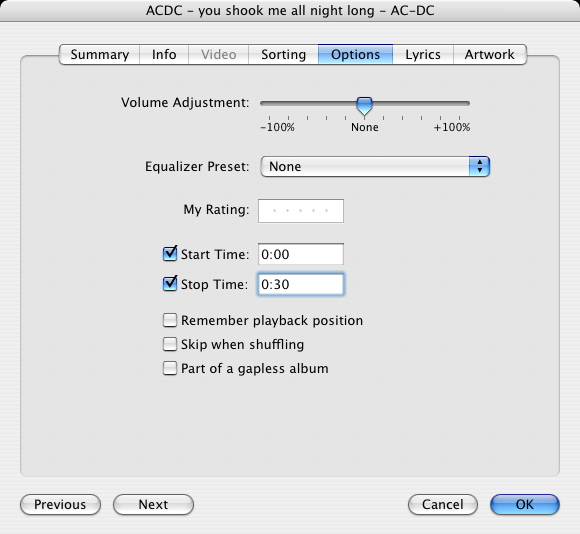
Right-click on the song in iTunes and select “Get Info” from the pop-up menu. Choose the Options tab and change the Stop Time to 0:30 for 30 seconds of play time.
This won’t change or damage the actual file; it just tells iTunes to only play the first 30 seconds of the song (plenty of time for you to answer your phone). You can change this setting back to full length after you create your ring tone.
2. Configure the iTunes MP3 Encoder
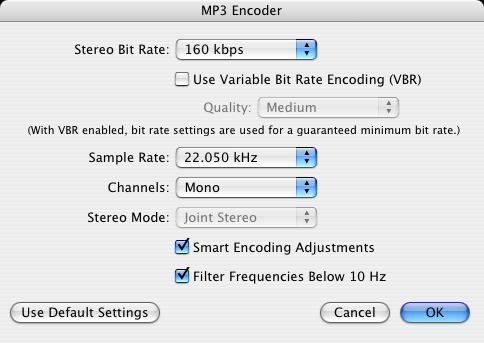
Configure the MP3 Encoder built into iTunes to use 22khz and mono encoding (the format used by cell phone ring tones).
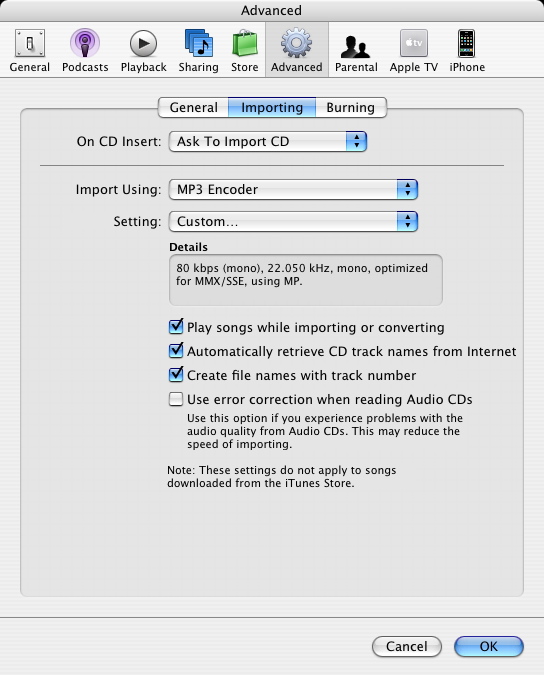
Click the Preferences menu and then choose the Advanced tab.
Click “Importing” and then choose “MP3 Encoder” from the Import Using drop down.
Choose “Custom…” from the Settings dropdown, which will display an “MP3 Encoder” dialog like the one shown below.
3. Convert the song to a ringtone
Convert the song to ringtone MP3 format by right-clicking it in iTunes and selecting “Convert Selection to MP3” from the popup menu.
iTunes will make a copy of the song and you’ll see that the time will change to 30 seconds.
Send the ringtone to your phone using a usb data cable or Bluetooth.
NOTE: Do not select “Create Ringtone”, as this option will charge your account, and also only works with songs you have purchased through the iTunes store.
Here’s the finished ring tone I created: ACDC-ringtone-you-shook-me-all-night-long.mp3
4. Transfer the ringtone to your phone
You’ll need to download software to transfer your new ringtone to your phone via Bluetooth or a USB data cable, something phone manufactures don’t include with their phones.
You’ll also be able to use the software to transfer pictures and videos, so it will quickly pay for itself after just a few free transfers.
I recommend a program called DataPilot that works with a USB data cable to transfer ringtones to your phone – it works with all major phone types and lets you transfer multiple ring tones, photos, videos, contacts, etc at a time.
When you run DataPilot, it will open a file explorer window and you’ll be able to copy any music files from your hard drive to your phone.
iTunes stores it’s music files in your “My Music” folder in Windows XP (under “My Documents”), and in your user folder in Windows Vista (e.g. C:\Users\rickysays\Music\iTunes\iTunes Music).
You’ll use DataPilot’s file explorer to open this folder and from there you’ll be able to select music files and transfer them to your phone.
5. Set your new ringtone as your default ringtone
Now that the ringtone is on your phone, you can set it as your default ringtone.
For the Motorola Razr, this involves entering Settings and selecting Ring Styles.
Choose the second option, which ends with “Detail”, and scroll to find your ringtone (hint, scroll up instead of down, since the newly added ringtone will be at the end of the list, and scrolling up will pick up the last item on the list).
Other phones will have slightly different menu selections, but the concept will be the same – find the audio file on your phone and then set it as your default ringtone.
how do i send it to my
how do i send it to my phone??
Thanks!!!
Thanks for that article. Worked well on my Samsung Impression. Have to use the software that it came with. I now can enjoy StarCraft as my ringtone! Thanks again!
This worked for 2
This worked for 2 ringtones,then didn’t. I got two ringtones working on my phone, and the the third and forth my phone wouldn’t accept as ringtones. I checked my settings in import again and they hadn’t changed. What happend????????? WTF
i would like to make a
i would like to make a rington for my iphone 3gs
man i need songs on my phone
man i need songs on my phone
I, too, am having issues
I, too, am having issues with the conversion to an mp3. When I right-click and select “create an mp3 version” nothing happens. Well, iTunes says it’s doing that, but the song doesn’t shorten to 30 seconds. Any ideas? Thanks!
Hey Ricky, I have the newest
Hey Ricky, I have the newest i-tunes and I can’t find the general tab or the import settings. 🙁
Can you help me?
hint, if you don’t see
hint, if you don’t see “convert to mp3” you have to change import settings. go to ‘edit’ > ‘preferences’ > ‘general’ tab > ‘import settings’ > then change ‘import using’ to ‘mp3 encoder. then it should give the option to make into an mp3. hope this helps! 🙂
no copy?
So when I click create mp3 version it says converting but a copy of the song is never made and the original doesn’t shorten to 30 seconds. What’s going on? Thanks 🙂
no copy?
So when I click create mp3 version a copy of the song isn’t made and the orginal doesn’t shorten to 30 seconds even though I set it to. What’s going on? Thanks 🙂
So far i did everything as
So far i did everything as said, but i dont have the “convert to mp3” i do have the newest vs of itunes and under advanced does not list it either
sync
when i sync 1 ring tone, the itunes needs to back up and then sync everything and this takes 1 hour.
do i make anything wrong or this is normal ?
how do i create free
how do i create free ringtones for an android phone?
I was able to make my
I was able to make my ringtone and it works great! However, now when the song file starts to play on it’s own (in both iTunes and on my iPhone), it plays like the ringtone, starting in the same spot. I’ve changed the settings for the song to start at the beginning and I’ve synced my phone, but it hasn’t helped. Any tips? Am I missing a step? Thanks.
Is it possible for the
Is it possible for the ringtone to be longer than 30 seconds? ..my goal is to have a song play as an alarm..my phone is my alarm clock.