Hard drives start with a single “partition” that holds the operating system, your applications, games and all of your important data, music, photos and videos. You can split your hard drive into multiple partitions, which makes your hard drive appear to be more than one drive.
Hard drives start with a single “partition” that holds the operating system, your applications, games and all of your important data, music, photos and videos. You can split your hard drive into multiple partitions, which makes your hard drive appear to be more than one drive (C drive, D drive, E drive, etc).
It’s still just one actual hard drive behind the scenes, but your computer will treat each partition as a separate hard drive. This makes it possible to create several file systems (either of the same type or different) on a single hard disk.
For example, I store all of my software programs like MS Office and Adobe Photoshop on my C: drive in a 100 GB partition, and all of my data files on a D: partition that’s 200 GB. They appear in Windows Explorer as two separate hard drives, even though they’re really both on the same 300 GB drive that has two partitions.
Partitioning your hard drive has many benefits, including:
- Improving Performance
Over time, your hard drive becomes very cluttered and messy. You can significantly improve your hard drive speed and organization by separating your operating system, applications and important data. This enables your hard drive to find files faster and easier. For instance, large hard drives with only one NTFS file system typically have a very large Master File Table (MFT), and it generally takes more time to read this MFT than the MFTs of hard drives with multiple partitions (because each partition has fewer files).
- Protecting Files
Partitioning may be customized for better data protection in the case of a system crash. If one partition is damaged, none of the other partitioned file systems are affected, and the drive’s data will still be salvageable. This makes it easier to recover a corrupted file system or failed operating system installation.
- Organizing Files
You can also improve the efficiency of your system by dedicating partitions to digital movie processing, photos, email mailboxes or browser cache.
- Running Multiple Operating Systems
Partitions allow users to have more than one operating system on a single computer. For example, you could install Linux, Mac OS X, Microsoft Windows onto different partitions of the same hard disk (so they don’t conflict) and be able to start your system with the operating system of your choice.
Windows unfortunately does not provide any partitioning software or commands that let even advanced users manage partitions, unless you’re starting from scratch with a new hard drive (or are willing to reformat your existing drive, which deletes all data from the drive). You’ll need a third-party software program to create or remove partitions on existing systems, especially if you want to retain your existing data.
Here are a couple programs that make partitioning your hard drive a safe and easy task:
Partition Commander 10 (Editor’s Choice Award – Computer Times) is one such program that safely organizes your hard drive into partitions so that your favorite applications, games and even your operating system run faster.
Simply follow a few automated steps and you’re done, and it works on all flavors of Windows including Vista. You may also have an existing set of partitions and wish to merge them all back into a single partition. Partition Commander lets you move unused disk space from one partition to another while still retaining the data on each partition – something that Windows can’t do by itself.
Acronis Disk Director is another partition manager that earned 6 of 6 stars and a “Recommended Award” from PC Pro. Disk Director lets you partition new or existing systems, and also focuses on recovery of damaged partitions.
- Automatically or manually merges, splits, resizes, copies, and moves partitions without losing data.
- Installs different multi-boot systems for your children, your work and for software tests.
- Backs up and restores critical hard drive sectors, and lets you edit the contents of hard disk sectors.
- Recovers deleted or lost partitions.
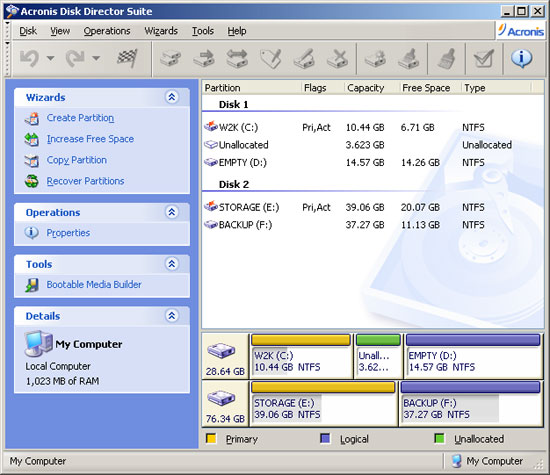
These third-party programs make it easy to partition your system or manage existing partitions, without losing data and without requiring a computer science degree to operate.
Whatever program you use to create or manage partitions on your system, be sure to make a backup of your important files before partitioning your system. That way if something goes wrong (such as accidentally deleting a partition containing your family photos or financial documents) you’ll be able to restore your files and get your data back.
help please
I have a Acer laptop, it has 2 hard drives built into it. i partitioned the hard drive so ACER (D) is now windows vista and ACER (C) is still Windows XP. I decided that i no longer wanted the windows vista on my laptop as i never used it and was taking up alot of space. I googled how to delete this partition and it sent me through control panel>performance and maintenance>admin tools>computer management. I deleted the partition and formated the D drive this drive now is empty. when i still turn on my laptop it comes up asking me to select an operating system. XP or Vista. How do i make it stop this and just load straight into windows XP? I really need help
Changing Windows Boot Options
Windows uses the contents of C:boot.ini to determine which versions of Windows are installed on your system, and prompts you accordingly to figure out which version you want to start.
This is a hidden file, so you may need to enable hidden files on your system in order to see it. Once you see it, you can open it in Notepade and edit the contents to remove the additional operating system (Vista in your case).
Here’s what my boot.ini file looks like, which just loads Windows XP without prompting me:
You can copy what I have, or modify yours to remove the additional line item in the operating systems section.
Hope this helps!
Exactly what I was looking for
Ricky,
I’ve been looking for a better hard disk partitioning tool for my windows boxes and have struggled to find what tool will do what I want it to do. I need the ability to not only partition my windows files – but I also need to be able to set up partitions for Ubuntu, Fedora, Suse and OSX. The article gives a great overview of the tools and pointed me to exactly the disk partitioning tool that I needed (Partition Commander).
Thanks!
Todd
Glad to help Todd, and it
Glad to help Todd, and it sounds like you’re taking full advantage of PartitionCommander’s partition support for multiple operating systems!
Calibrating a home printer
Good Day,
I have an inkjet printer at home, a Canon Pixma 4500. I use it mostly for
document printing, but occasionally I need to print a bunch of photos as
well. The thing is I’m not very satisfied with the photo results I get on compatible paper,
but I knew it was possible to get better prints. So I found a good article I want to
share – http://blog.tonercartridgedepot.com/2008/07/03/how-to-calibrate-a-photo-printer-at-home/. –
It’s kind of a guide on how to calibrate a printer at home. The only unhandy thing is a scanner is
required, so I had to visit a local print shop for scanning. Following the article it was really
easy to calibrate, and I got much better pictures in terms of color reproduction.
Best regards pb.
Hard Disk Partition
I’m using Windows XP. On my local disk drive, I have a C: and D: drives; however, I want to delete D: drive and be able to extend C: to utilize the new space from the deleted D:. How do I accomplish this?
I have a similar problem. I
I have a similar problem. I bought a laptop and desktop. Both required the creation of recovery DVD’s. I’ve made the DVD’S for each, however, the partition remains I assume holding the same information now found on the recovery DVD’s. I really don’t care about the desktop Windows Vista hard drive because it is a 500GB, but the laptop Windows XP hard drive is only an 80GB. I could use the space there.
hard disk password i fogot
i have toshiba laptop.the problem of ma lap top is hard disk password.can u help to solve this problem by using software program plz plz help me.
partitions
I think my kids caused my laptop to get a virus and now my hard drive has so many partitions I have no room to move or download. It sucks.
I received an error stating my win32.exe was not working so I tried to restore and now I have 0% memory. I can’t do anything as far as dling any freeware to help me clear some of the partitions. Can you help?